
Set up parental controls with a PIN
On this page
The short answer
Open “Settings”, choose “Parental controls” and tap “Set PIN”. With a 4-digit PIN in place you can lock whole categories, single live channels and movies or series above an age limit. Locked content stays visible, but Tunvio asks for the PIN before it opens.
Good to know first
- The PIN belongs to one playlist. Each playlist has its own PIN and its own locks. If you use Device Sync with the option “Parental controls”, the PIN and the locks are synced with the playlist.
- Locking is not hiding. A locked category or channel still appears in the lists. The PIN is asked when someone tries to open or play it, not before.
- Premium. In the app you can see whether the parental controls are included in your plan.
- You need a playlist first. See how to add an IPTV playlist.
Set a PIN
- Open “Settings” and choose “Parental controls”.
- Tap “Set PIN”. The keypad opens with the title “Set a PIN”.
- Enter four digits. On a TV you can use the arrow keys and OK on the keypad, or the digit keys on your remote.
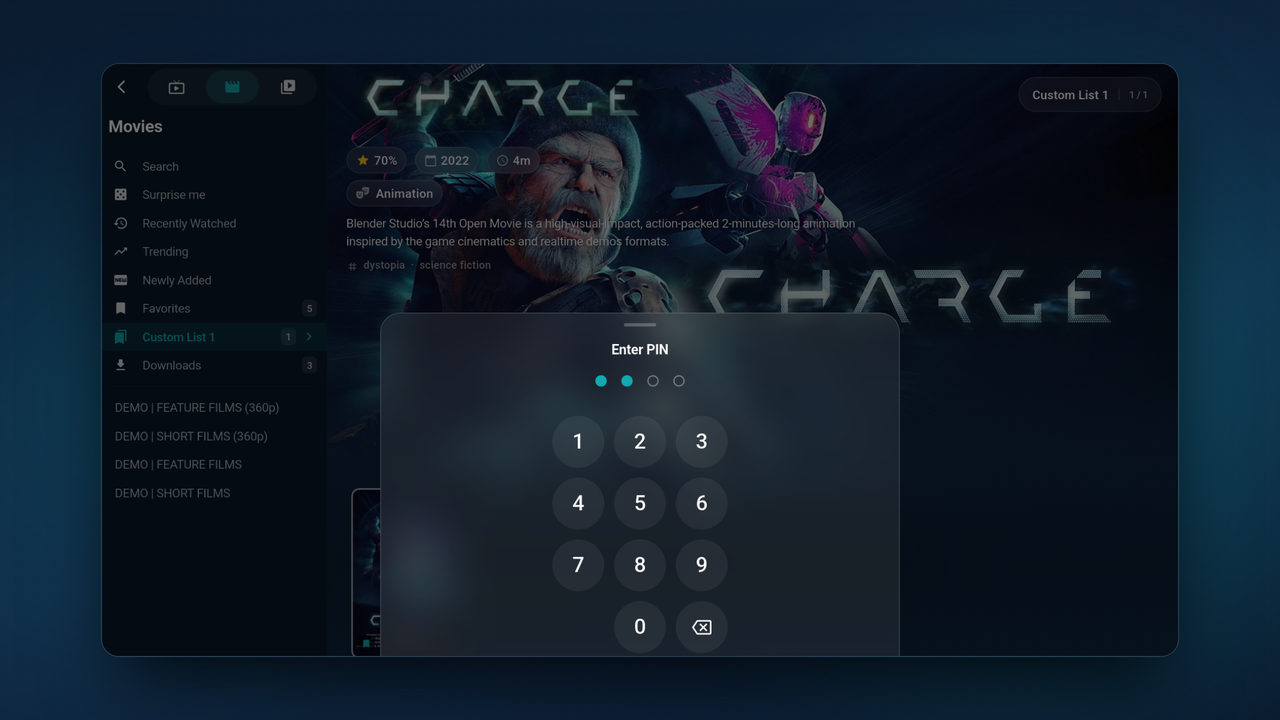
- Enter the same four digits again under “Confirm PIN”. Tunvio shows “PIN saved”. If the two entries differ, the app says “PINs don't match” and you start again.

Lock categories
- On the page, find the section “Locked content” and tap “Locked categories”. Enter your PIN.
- Choose the tab “Live TV”, “Movies” or “Series”. If the list is empty, the app asks you to open that section once first, so that its categories are loaded.
- Switch on every category you want to lock. The counter shows how many are locked, for example “3 locked”.
- Go back. From now on, opening anything in a locked category asks for the PIN, and the keypad says “This category is locked.”
After you enter the PIN, the content stays open until you switch the playlist or close the app.
Lock single channels
- In the same section, tap “Locked channels” and enter your PIN.
- Pick a category, then switch on the channels you want to lock. On a wide screen such as a TV, the categories are on the left and the channels on the right. The keypad then says “This channel is locked.”
A locked channel in a category that is not locked still asks for the PIN. Quick channel switching in the player, such as zapping, leaves locked channels out.
Set an age limit for movies and series
After a PIN exists, the page shows a section “Age rating”.
- Tap “Age limit” and enter your PIN.
- Choose one of “Up to age 0”, “Up to age 6”, “Up to age 12”, “Up to age 16” or “Up to age 18”, or use “Custom value” for a number from 0 to 21. “Off” removes the limit.
- Decide about titles without a rating. “Lock titles without a rating” is on at first: with an age limit set, Tunvio then locks every title whose age it cannot find.
The limit applies to movies and series, not to live channels. The ratings come from TMDB and do not exist for every title. While the app is still fetching them, many titles count as “without a rating”.
What else is locked
- Adult categories. As soon as a PIN is set, Tunvio keeps categories for adults behind the PIN. It recognises them by the name your provider gave them and by a flag that some providers set. There is no switch for it. The page shows how many it found under “Adult content always locked”. The detection of names is not perfect, so check the result yourself.
- Hidden content. The switch “Lock hidden content too” treats hidden categories and channels as locked. It is on at first. It stops a child from showing them again to get around the lock.
- Search and lists. In search and in the lists, a locked title appears as “Locked content”. Tapping it asks for the PIN.
- “For You”. Locked content is not suggested there.
Other options on the page
- “One PIN unlocks everything”. This switch is off at first. When it is on, one correct PIN keeps everything that is locked open for this session. The release is not saved: a new start of the app locks everything again.
- “Always show the 18+ image”. Replaces posters, backdrops and channel logos of adult content with a drawn 18+ image. You can use it without a PIN. If a PIN exists, switching it off asks for the PIN.
Change or remove the PIN
- On the page, tap “Change PIN”. Enter the current PIN, then the new one twice.
- To remove it, tap “Remove PIN” and enter the PIN. The app says “PIN removed”. This also deletes all locks and the age limit of that playlist.
If it does not work
- “Wrong PIN”. Enter it again. When you open locked content, the first five wrong entries cost nothing. From the sixth, the keypad pauses for 30 seconds, and the wait doubles with every further wrong entry, up to one hour. The message reads “Too many attempts — try again in 30s”. The pause survives a restart of the app.
- You forgot the PIN. Tunvio has no reset button for the PIN and sends no reset code. The app says that the playlist must be reset to remove the lock. Deleting a playlist deletes its PIN and its locks, together with the other data Tunvio keeps for that playlist. You then add the playlist again by hand with the details from your provider. Do not restore it through Device Sync: when you use Device Sync and delete the playlist, the app asks whether to remove it only on this device or on all devices, and the PIN is part of what Device Sync carries.
- “Your PIN couldn't be read — this can happen after a device security change.” Open the page and tap “Set PIN”: you set a new PIN without the old one.
- The page looks greyed out. The parental controls are not part of your plan on this device. The app shows the page dimmed, with a banner to unlock it.
- A title is locked, but the category is not. The keypad tells you why: the age rating is above your limit (“Rated for age 16 — above your limit of 12.”), there is no rating (“Age rating unknown — locked as a precaution.”) or the provider flagged the title (“This title is flagged as adult content.”).