
Turn on, change or add subtitles in the player
On this page
The short answer
To turn on subtitles in Tunvio, show the player controls, select “Audio & subtitles” and pick a track under “Subtitles”. If the title has no subtitles in your language, you can search for them online or load a subtitle file from your device.
What you need
- A movie, episode or channel that is playing. The list under “Subtitles” shows the tracks that the stream itself contains.
- For “Search subtitles online…” and “Load file…”: the standard player, and a movie or series (not live TV). Neither is offered while you cast to another device. For online search and for loading missing subtitles automatically, the app shows whether the function is included in your plan.
- On Samsung TVs (Tizen) the player has no subtitle or audio track selection, no online search, no “Load file…” and no style options. The steps below do not apply there.
Turn subtitles on or off
- While a video plays, show the controls. Tap the picture. On a TV the player starts without controls: press up, down or OK.
- Select “Audio & subtitles” in the row of buttons at the bottom. On a narrow phone in portrait the row shows only icons: choose the one with the “CC” symbol.
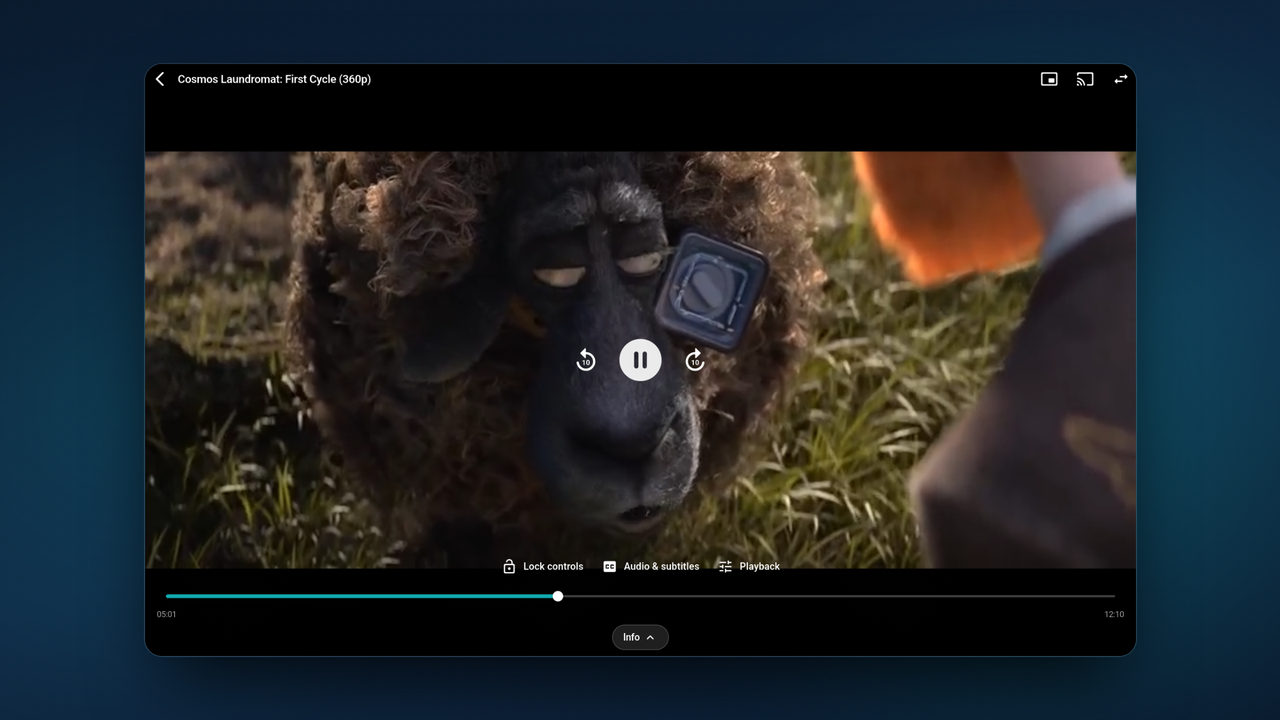
- Under “Subtitles”, select a track. Select “Off” to switch subtitles off. The sheet closes and the subtitles change at once.

Let Tunvio choose
- Open Settings and then “Playback”.
- Set “Default audio language” and “Default subtitles”.
Tunvio then switches subtitles on when the audio is not in your language and a track in your subtitle language exists. When the audio already matches, the subtitles stay off.
Do you never want subtitles to switch on by themselves? In the same place, in the group “Audio & subtitles”, turn on “Never turn on subtitles automatically”. You can still turn them on in the player; that then holds until you close the player.
While this switch is on, Tunvio hides the rows “Default subtitles”, “Auto-load missing subtitles” and the style rows.
Search subtitles online
- Open “Audio & subtitles” and select “Search subtitles online…” in the list under “Subtitles”.
- The sheet “Online subtitles” shows a row of languages. Select one. Tunvio loads the best matching subtitle by itself and closes the sheet.
- Is the subtitle out of sync? Open the sheet again and select the same language once more to load the next match.
- For a small timing error, open “Audio & subtitle sync” in the “Audio & subtitles” sheet and change “Subtitle delay”.
For the search, only the title's ID or, failing that, its cleaned title and year, plus the season, the episode and the language are sent. No profile, login or playback data is sent.
Load missing subtitles automatically
- Open Settings and then “Playback”.
- Set a language under “Default subtitles”.
- Turn on “Auto-load missing subtitles”. It is off at first.
If a title has no subtitles in your language, Tunvio then fetches them from an external source. If none exist, it tells you once: “No subtitles found for” followed by the language.
Load a subtitle file
- Open “Audio & subtitles”. At the end of the “Subtitles” list, select “Load file…”.
- Choose the file on your device. Tunvio accepts SRT, VTT, ASS, SSA and SUB files up to 5 MB.
The file belongs to this video. It is not carried to the next episode. This entry is not offered on TVs (Android TV, Fire TV and Samsung).
Change how subtitles look
- Open Settings, then “Playback”, and find the group “Audio & subtitles”.
- Set “Subtitle size” (Small, Medium, Large or Extra large), “Text color” (White, Yellow or Cyan) and “Background” (Semi-transparent, Opaque or None).
These options apply to the standard player. The alternative player draws subtitles itself.
If it does not work
- The list shows only “Off”. The stream has no subtitle tracks. Search online or load a file.
- “Search subtitles online…” or “Load file…” is missing. Neither is offered for live TV, while casting or with the alternative player, and “Load file…” is not offered on TVs. To switch back, open Settings, “Playback”, then “Advanced”, and set “Video player” to “Standard player”.
- “Subtitle search failed. Please try again later.” The search did not go through. Check your connection and try again later.
- “Online subtitles are temporarily unavailable. Please try again later.” The service is busy. Try again later.
- “No subtitles found for” a language, or “No more subtitles found for” a language. Nothing (more) matches this title in that language. Pick another language or load a file.
- “Couldn't load the subtitle.” Try again, or pick another language.
- “This format isn't supported — use SRT, VTT, ASS, SSA or SUB.” Convert the file or use a different one.
- “The subtitle file is too large (max. 5 MB).” and “The subtitle file couldn't be read.” Use a smaller or a different file.
- “Subtitles aren't passed on while casting.” The receiver shows no Tunvio subtitles. Stop casting to see them on this device.