
Change audio track, speed and aspect ratio while playing
On this page
The short answer
In the Tunvio player, show the controls and use two of the buttons at the bottom. “Audio & subtitles” switches the audio track. “Playback” opens “Playback settings”, where you change the speed, the aspect ratio, the sleep timer and more. Which rows you see depends on your device and on what you are playing.
What you need
- A video that is playing. Most rows work best in the standard player. The alternative player (VLC) has no aspect ratio or zoom.
- Samsung TVs (Tizen) offer fewer rows. Speed, aspect ratio and audio track selection are not available there.
Open the player menus
- While a video plays, show the controls. Tap the picture. On a TV the player starts without controls: press up, down or OK.
- In the row of buttons at the bottom, select “Audio & subtitles” or “Playback”. On a narrow phone in portrait the row shows only icons: “Audio & subtitles” has the “CC” symbol, “Playback” the sliders symbol.
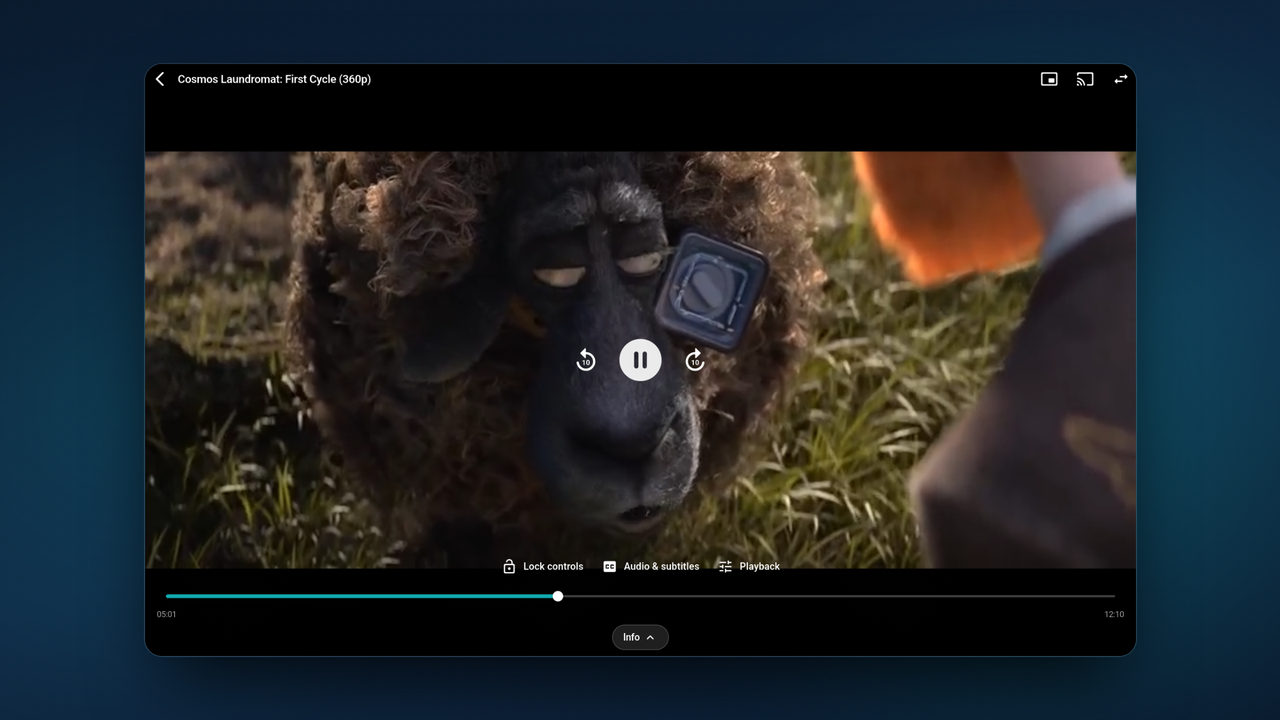

Switch the audio track
- Select “Audio & subtitles”.
- Under “Audio Tracks”, select a track. The sheet closes and the sound changes.
The list “Audio Tracks” appears only when the stream reports its audio tracks, and not while you cast. For subtitles, see how to turn on subtitles. If sound and picture are out of step, select “Audio & subtitle sync” in the same sheet and change “Audio delay”.
Change the playback speed
- Select “Playback” and then “Speed”.
- Choose one of 0.5×, 0.75×, 1× Normal, 1.25×, 1.5×, 1.75× or 2×.
Speed works for movies, series and finished recordings, not for live TV. At another speed the picture skips frames. That is normal and not a fault of your device.
Change the aspect ratio
- Select “Playback” and then “Aspect ratio”.
- Choose “Fit”, “Fill” or “Stretch”. “Fit” shows the whole picture. “Fill” crops the edges so the picture fills the screen. “Stretch” distorts the picture.
- For a finer result, select “Fine-tune”. Use “Zoom”, “Horizontal” and “Vertical”. “Reset” undoes your changes, and “Apply to all” makes this picture shape the default for everything in this area.
On a phone or tablet you can also pinch the picture with two fingers. This needs the setting “Swipe and pinch gestures” (Settings, “Playback”) and does not exist on Android TV. A pinch near “Fit” or “Fill” snaps to that mode.
To set the default for every title, open Settings and then “Playback”. There you find “Aspect ratio for Live TV” and “Aspect ratio for films & series”.
Set a sleep timer
- Select “Playback” and then “Sleep timer”.
- Choose “Off”, 15, 30, 45 or 60 minutes, “Custom value” (1 to 720 minutes) or “End of episode”. “End of episode” is offered for movies and series only.
When the time is up, playback pauses and the message “Sleep timer ended” appears with the buttons “Resume”, “15 minutes”, “30 minutes” and “Close app”. The two time buttons keep playing and start the timer again. To start every playback with a timer, set “Default sleep timer” in Settings, “Playback”.
Volume and brightness
On a phone or tablet, select “Playback” and then “Volume & brightness”. A sheet opens with a slider and plus and minus buttons for each. You can also swipe up or down on the picture: on the right for volume, on the left for brightness. The swipes need the setting “Swipe and pinch gestures” (Settings, “Playback”). On a TV the row does not exist: use the volume keys of your remote.
Try the other player
If a stream does not play well, select “Playback” and then “Player engine” to switch to the other player for this session only. The stream restarts. “Playback problems?” in the same menu guides you step by step. You choose what the picture does (“The picture stays black”, “The picture judders or stutters” or “The stream cuts out or freezes”) and Tunvio suggests what to try.
On Android you also find “Open in external player” there, which hands the stream to another app. It is not offered for downloads, recordings or catch-up. See open in an external player. If a stream does not play at all, see fix a stream that won't play.
If it does not work
- The row “Speed” is missing. You are watching live TV, a recording that is still being written, or you are on a Samsung TV.
- The row “Aspect ratio” is missing. You are casting, you are on a Samsung TV (it has no aspect ratio option), or the alternative player is running. In the last case, open Settings, “Playback”, then “Advanced”, and set “Video player” to “Standard player”.
- The list “Audio Tracks” is missing. The stream does not report any audio tracks, you are casting, or you are on a Samsung TV.
- The row “Player engine” is missing. Only one player is available on your device. Samsung TVs use their own TV player, and on computers and some older TVs only the standard player is available.
- No “Playback” button at all. While you cast, it only appears if speed or volume of the receiver can be changed. Stop casting to see all rows.