
Picture-in-picture and background audio
On this page
The short answer
To keep watching in a small window, tap the picture-in-picture button in the player, or leave the app while a video plays and “Auto picture-in-picture” is on. To keep only the sound when the screen is off, switch on “Background audio” in Settings → “Playback”.
Where it works
- Picture-in-picture: on Android phones and tablets and on iPhone and iPad. It is not available on Samsung TV or on Windows, macOS and Linux. Some Android TV boxes have no picture-in-picture in the system, and then Tunvio does not show the button or the setting.
- Background audio: the setting is shown on Android and iOS. It is not available on Samsung TV or on desktop.
- Player: picture-in-picture needs the “Standard player”. With the “Alternative player (VLC)” it does not work. You can check the choice under Settings → “Playback” → “Advanced” → “Video player”.
- Casting: while you cast to another screen, there is no picture-in-picture button.
Start picture-in-picture with the button
- Start a channel, a movie or an episode.
- Tap the screen to show the controls.
- Tap the picture-in-picture icon in the top bar. Its tooltip reads “Picture-in-picture”.
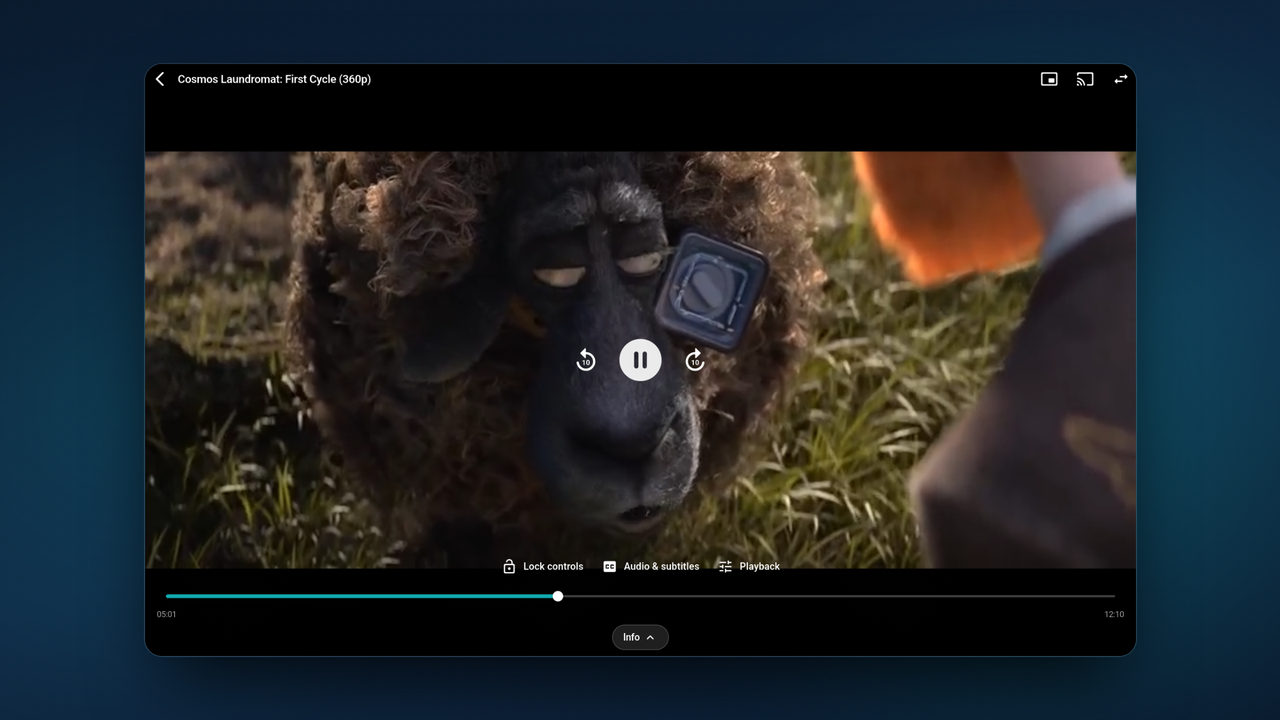
- The video shrinks to a small window that stays above other apps.

On iPhone and iPad, Tunvio itself then shows “Playing in the picture-in-picture window. Tap to return.”
Start it automatically when you leave the app
- Open Settings → “Playback”.
- In the section “Picture & player”, find “Auto picture-in-picture”: “Keep playing in a small window when you leave the app”. It is on at first.
- Play a video and go to the home screen or to another app. The video continues in the small window.
The window opens only while a video is playing. A paused video, or a cast session, stays as it is.
Use the small window
- The window has a play and pause button.
- Tap the window to return to Tunvio in full screen.
- On Android, closing the window with the X button pauses the video. It does not keep running unseen in the background.
Keep the sound with the screen off
- Open Settings → “Playback”.
- In the section “Picture & player”, switch on “Background audio”. The app describes it as: “Playback keeps running with the screen off — at full data usage.”
- On Android 13 and later, the system asks you to allow notifications. Allow them. While the sound plays, Android shows a notification titled “Now playing” with buttons for play, pause and stop.
- Start a video and turn off the screen, or switch to another app. The sound continues.
The setting is off at first. The stream keeps loading in the background, so it uses as much data as when you watch. Think of this if you are on mobile data.
To stop the sound, pause or stop it in the notification, or open Tunvio and stop the video there.
If it does not work
- There is no picture-in-picture button. Check that you use the “Standard player”, that you are not casting, and that your device offers picture-in-picture. If your Android device has a system setting for picture-in-picture in the app information of Tunvio, check that it is allowed.
- The video does not shrink when I leave the app. Check that “Auto picture-in-picture” is on and that the video is playing, not paused.
- “Notifications are off — background playback needs them, allow them in system settings.” This note appears under “Background audio”. Open the system settings of your device and allow notifications for Tunvio.
- The sound stops when I turn off the screen. Check that “Background audio” is on. It is off at first.